
Explore. Discover.
Enjoy Sportzfy.
Everything you need to know about Sportzfy, bringing you closer to a better experience.
Download Sportzfy APK
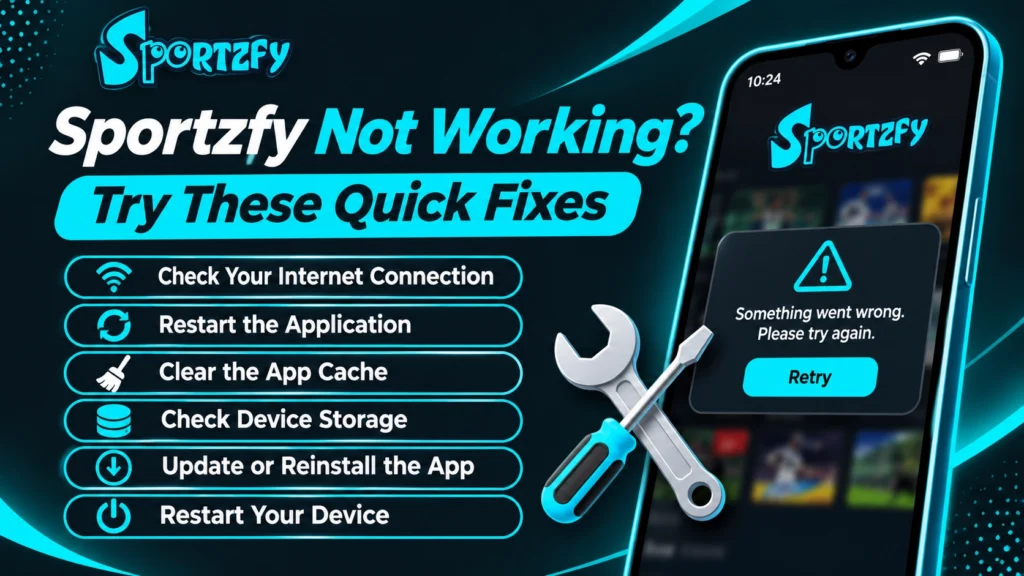
Sportzfy Not Working? Try These Quick Fixes
Opening an app should be simple. However, sometimes the screen freezes, videos refuse to play, or the application closes unexpectedly. These problems interrupt your viewing experience and make troubleshooting confusing. If Sportzfy is not working properly, the cause may involve your internet connection, device settings, application cache, or installation files. Before changing anything, note when Sportzfy apk started behaving differently. Fortunately, many common issues have straightforward solutions.
This guide helps you identify different problems and fix them without unnecessary changes. Start with the simplest solution and move forward only when needed.
Why Is Sportzfy Not Working?
Application problems can have several causes. Identifying the actual issue helps you avoid wasting time on unrelated fixes.
Common reasons include:
- Weak or unstable internet connectivity
- Temporary application glitches
- Corrupted cache files
- Insufficient device storage
- Outdated application versions
- Incompatible installation files
- Temporary stream availability problems
Sometimes, the application opens correctly but specific content fails. In that situation, your device might not be responsible.
Check Your Internet Connection
A stable internet connection is essential for online playback. Even when Wi-Fi appears connected, interruptions can affect video loading. First, open another website or streaming service. Check whether it loads normally.
If other services also experience problems, try these steps:
- Switch between Wi-Fi and mobile data.
- Restart your router.
- Move closer to your Wi-Fi router.
- Pause background downloads.
- Test your connection again.
If everything else works normally, continue with the following solutions. This quick test helps separate network problems from Sportzfy App issues.
Restart the Application
Temporary glitches can prevent an application from responding correctly. Restarting it may resolve minor freezing or loading problems. Close Sportzfy TV completely instead of simply returning to your home screen. Then reopen it and test the affected feature.
On Android, open Recent Apps and remove the application from the list. Afterward, launch it again. If the problem disappears, a temporary application glitch was likely responsible. You can now use sportszfy again without changing other settings.
Clear the Application Cache
Cached files help applications load certain information faster. However, damaged cache files can sometimes interfere with normal operation.
Follow these steps:
- Open your Android device Settings.
- Select Apps or Application Management.
- Find Sportzfy in your installed applications.
- Open Storage or Storage Usage.
- Tap Clear Cache.
- Launch the application again.
Important: Choose Clear Cache instead of Clear Data initially. Clearing data may remove stored settings or application information.
Fix Black Screen and Loading Issues
A black screen does not automatically mean your installation is damaged. Sometimes, a particular stream becomes unavailable or playback encounters a temporary interruption.
Try these solutions:
- Return to the previous screen.
- Select another available stream.
- Restart the application.
- Test another internet connection.
- Restart your device.
If other content works normally, the original stream may be temporarily unavailable. This distinction is useful when sportzfy 2026, loads menus but cannot play one selection. Avoid changing several device settings without identifying the problem.
Check Available Device Storage
Low storage can affect application performance. Your device may also struggle when several applications run simultaneously. Open Settings and check your available storage. Remove unnecessary downloads, duplicate files, or unused applications. Keep some free space available for temporary files. Also, close background applications when your device feels unusually slow.
These steps can improve overall performance without requiring another installation. Check whether sportzfy app apk download responds more smoothly afterward.
Update or Reinstall the Application
An outdated installation may contain bugs or compatibility problems. If previous solutions fail, check whether a newer version is available from a source you trust. Before updating, confirm that the APK matches your device requirements.
If updating does not help, consider reinstalling:
- Save any information you need.
- Uninstall the existing application.
- Restart your device.
- Install a verified APK file.
- Open the application and test it.
Reinstallation may resolve installation-related problems. However, it cannot repair unavailable streams or external service interruptions.
Restart Your Android Device
Your device may experience temporary system glitches. Restarting refreshes background processes and can resolve certain performance problems. Press and hold the power button. Select Restart if your device provides that option.
After restarting, open sportzfy apk latest version and test the feature that previously failed. This solution is particularly useful when several applications become slow or unresponsive together.
Identify the Actual Problem
Before repeating the same solutions, identify what happens when you open the application.
| Problem | Possible Cause | First Solution |
|---|---|---|
| App does not open | Temporary glitch | Restart the app |
| Black screen | Playback issue | Try another stream |
| Continuous loading | Network interruption | Check internet |
| App closes suddenly | Cache or compatibility | Clear cache |
| Installation fails | APK or storage issue | Check file and storage |
| One channel fails | Stream unavailable | Test another channel |
This table helps you choose a suitable solution instead of making random changes. Use it to narrow down sportzy android problems before trying advanced fixes.
Final Thoughts
Application problems rarely have one universal solution. Therefore, identifying the cause matters more than repeatedly reinstalling everything. Start with your internet connection and restart the application. Next, clear the cache and check available storage. If necessary, reinstall a verified application version.
If Sportzfy latest version v32.0 continues failing while other applications work normally, the problem may involve a specific stream, application compatibility, or temporary service interruption. With a systematic approach, you can identify the issue faster and avoid unnecessary troubleshooting steps.