
Explore. Discover.
Enjoy Sportzfy.
Everything you need to know about Sportzfy, bringing you closer to a better experience.
Download Sportzfy APK
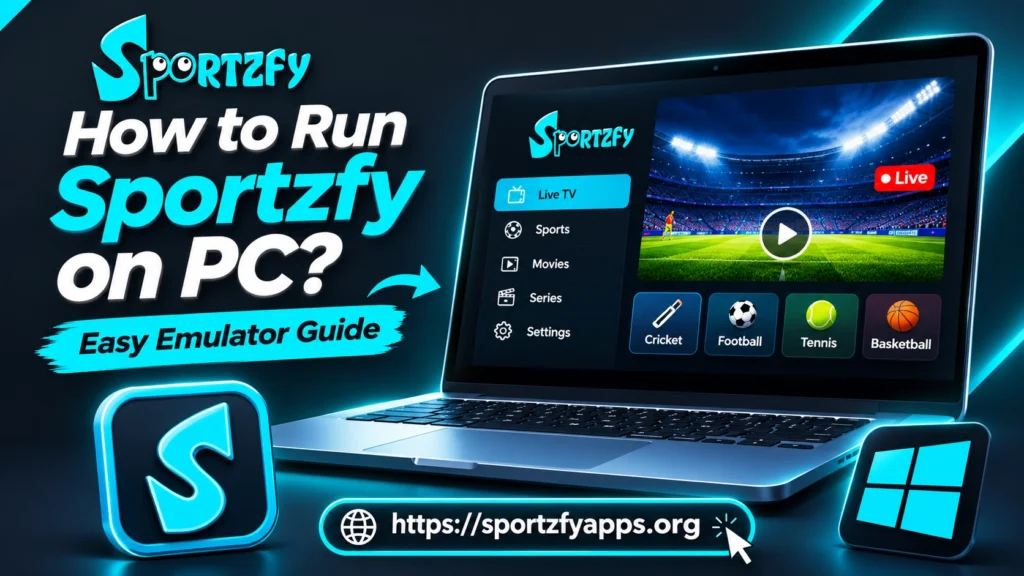
How to Run Sportzfy on PC? Easy Emulator Guide
Android APK files cannot normally install directly on Windows. To use Sportzfy Apk on a computer, you need an Android emulator such as BlueStacks. The emulator creates an Android environment, but it does not guarantee every application or video stream will work.
This guide focuses on real problems users may face: APK installation errors, application crashes, black screens, slow navigation, and video buffering.
Before You Install
Before installing Sportzfy for PC, confirm your emulator supports the Android environment required by the application. Use a Windows computer that meets your emulator’s requirements. BlueStacks recommends 8GB RAM for its recommended setup. Keep enough storage free for the emulator and downloaded APK.
Enable virtualization if your processor supports it. Open Task Manager, select Performance, and check Virtualization under CPU. If disabled, enable Intel VT-x or AMD SVM through BIOS/UEFI, following your computer manufacturer’s instructions.
How to Install Sportzfy Through BlueStacks
Step 1: Install the Emulator
Download BlueStacks from its official website:
Run the installer and open BlueStacks after setup. Let its Android environment finish loading before importing any application.
Step 2: Check the APK File
Download Sportzfy and Confirm the file ends in .apk and that the download completed. An .xapk package is different. It may contain additional application files. Renaming it to .apk will not convert the package.
Step 3: Import the APK
In BlueStacks, select Install APK from the toolbar. Choose the downloaded file and wait for installation to finish. If the installation fails, note the displayed error. Repeating the same installation attempt without identifying the cause rarely helps.
Step 4: Launch the Application
Open the application icon from BlueStacks’ home screen. Allow the application to complete startup before checking its available sections. If Sportzfy TV does not open correctly, identify whether the issue occurs during startup, navigation, or playback.
Fix Sportzfy Installation and Startup Errors
APK Installation Failed
An installation error may indicate a damaged package, insufficient storage, or an Android-version mismatch. If Sportzfy for Apple installation fails repeatedly, check package compatibility before downloading another file.
Try these solutions:
- Delete the downloaded file and download it again.
- Check available storage inside BlueStacks.
- Confirm that the package is a standard APK.
- Restart the emulator before reinstalling.
- Check whether the application supports your emulator’s Android version.
Test the file on a compatible Android device if possible. If it fails there too, the package may be damaged. If it installs successfully elsewhere, emulator compatibility becomes more likely.
Application Closes Immediately
If Sportzfy APP opens and then exits, first check whether Blue Stacks itself is stable. Launch another installed application. If other apps also crash, update Blue Stacks and restart Windows.
If only this application crashes, open Android Settings inside the emulator. Navigate to Apps, select the application, and clear its cache. Avoid clearing application data immediately. That may reset settings or remove saved preferences.
Black Screen After Launch
When Sportzfy Download displays a black screen, first determine whether the interface or video player is affected.
If the entire interface stays black:
- Restart BlueStacks.
- Open its Graphics settings.
- Try another supported graphics rendering mode.
- Save the setting and restart the emulator.
If menus work but video remains black:
- Test another available stream.
- Check whether the problem affects every video.
- Restart the application.
- Check network connectivity and emulator compatibility.
If only one stream fails, its source may be unavailable. Changing graphics settings repeatedly will not repair an unavailable stream.
Fix Lag Without Confusing It With Buffering
Emulator Navigation Is Slow
If Sportzfy for Android navigation feels sluggish, check emulator resource allocation before changing your internet connection. If menus, scrolling, and clicks lag before video starts, the emulator may lack sufficient resources.
Try these adjustments:
- Close heavy Windows applications and unnecessary browser tabs.
- Reduce emulator resolution.
- Use moderate CPU and RAM allocation.
- Check whether virtualization is enabled.
- Update graphics drivers if rendering remains unstable.
Change one setting at a time. This makes it easier to identify which adjustment actually improves performance.
Video Keeps Buffering
If menus respond normally but playback repeatedly pauses, investigate the network or stream instead.
- Pause cloud backups and large downloads.
- Test another available stream.
- Compare playback on another device using the same internet connection.
- Restart your router if multiple devices experience buffering.
- Check whether the emulator has normal network access.
Sportzfy app apk download playback depends on the selected stream’s availability and performance. Emulator settings cannot repair an unavailable source.
Quick Problem Diagnosis
| Symptom | First Check |
|---|---|
| APK won’t install | File integrity and compatibility |
| App closes immediately | Cache and emulator stability |
| Interface remains black | Graphics settings |
| Video alone is black | Try another stream |
| Menus respond slowly | CPU/RAM and virtualization |
| Video pauses repeatedly | Network or stream availability |
Final Thoughts
Running Sportzfy on PC requires a compatible APK and Android emulator. Successful installation does not guarantee uninterrupted playback. Identify where the failure occurs: installation, application startup, interface navigation, or video playback. Then apply the relevant solution instead of reinstalling everything repeatedly.