
Explore. Discover.
Enjoy Sportzfy.
Everything you need to know about Sportzfy, bringing you closer to a better experience.
Download Sportzfy APK
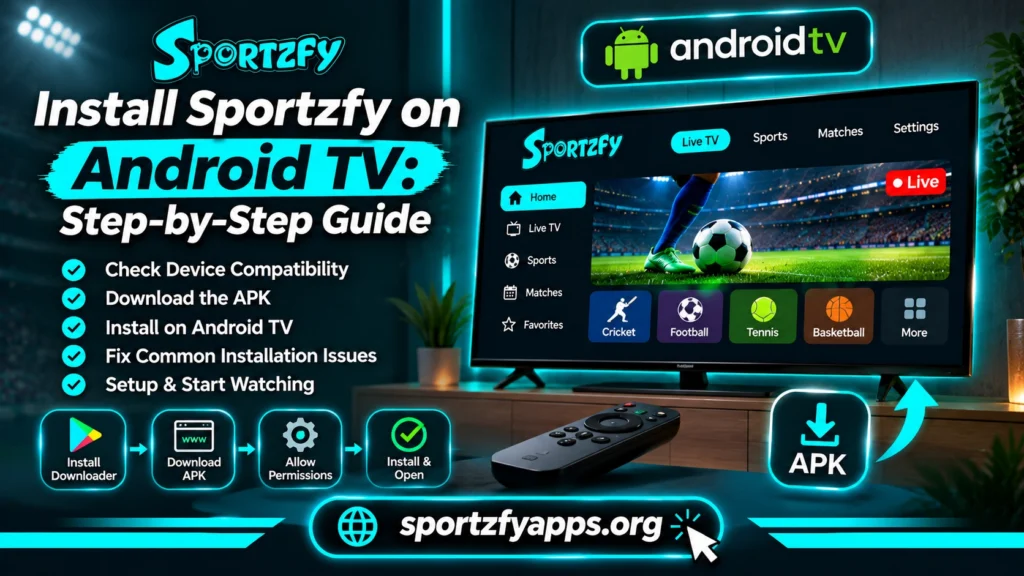
Install Sportzfy on Android TV: Step-by-Step Guide
Watching sports on a television is more comfortable than using a phone. However, installing an APK on Android TV can be confusing when the TV does not offer a normal download option. This guide covers setup, installation errors, and practical fixes without unnecessary steps for Sportzfy.
Before You Install
First, confirm that your television or streaming box runs Android TV or Google TV. These systems can install compatible Android APK files, although menus differ by brand and software version. Samsung Tizen, LG webOS, Roku, and Apple TV do not install Android APKs directly. You will also need a stable internet connection, enough free storage, a compatible device, and a browser, Downloader app, or file manager. Download the APK only from a source you trust, and confirm it is the correct Sportzfy package.
Sportzfy apk is an Android application, so installation depends on device compatibility. An Android version requirement alone does not guarantee that every television will run it smoothly.
Method 1: Install Using Downloader
Downloader can make APK installation easier when typing a website address with a TV remote feels difficult. Use this method only if the app is available for your device.
Step 1: Install Downloader
Open the Google Play Store on your Android TV or Google TV. Search for Downloader by AFTVnews and install it. If it is unavailable, use the USB method below.
Step 2: Allow APK Installation
Android may block installation until you approve the app that opens the file.
On many Google TV devices, open:
Settings → Apps → Special app access → Install unknown apps
Select Downloader and enable permission. On older Android TV versions, this option may appear under Security & Restrictions or Unknown Sources.
Enable permission only for the installer you are using. Keep other security protections enabled.
Step 3: Download the APK
Open Downloader and enter the verified Sportzfy app download page address. If the page loads, select its APK download option and wait until the file finishes.
Do not open the file while it is still downloading. An incomplete APK can cause installation errors.
Step 4: Install and Launch
When the download completes, select the APK and choose Install. Wait for Android to finish, then select Open.
If Sportzfy tv does not appear on your home screen, check the complete Apps list or Settings → Apps. Some sideloaded applications may not appear in the main launcher.
Method 2: Install Using a USB Drive
This method helps when Downloader is unavailable or the TV browser cannot download files.
- Download the APK on a computer or Android phone.
- Copy the file to a USB flash drive.
- Connect the drive to your television.
- Open a compatible file manager.
- Locate and select the APK.
- Allow installation for that file manager if Android asks.
- Choose Install and wait for completion. Open Sportzfy for android only after Android confirms installation.
Some streaming sticks do not have a USB port. They may require a compatible OTG adapter or another transfer method. Check your device’s hardware before preparing the drive.
Fix Common Android TV Installation Problems
“App not installed”
This message can appear when the APK is incomplete, storage is low, or an existing app conflicts with the new package. Download the file again, check available storage, and review whether an older version is installed.
Downloader Cannot Install the APK
Return to Settings and confirm that Downloader has permission to install unknown apps. The permission may reset or be located differently after a system update.
App Installs but Crashes
Restart the TV, check the internet connection, and confirm the APK supports your device. If Sportzfy latest version v32.0 keeps closing, note your TV model, Android TV version, and the exact error instead of repeatedly installing random files.
Remote Navigation Does Not Work Properly
Some Android applications are designed mainly for touchscreens. If menus do not respond to directional buttons, check whether the app offers TV Mode or remote-friendly navigation. Compatibility can vary between versions and devices.
After Installation: Improve Your TV Setup
Once Sportzfy tv app opens, test navigation before relying on it for a match. Use the remote’s arrow, OK, and Back buttons. If the interface feels difficult, check the app’s available TV settings. Keep enough storage free for application data and cache. Also, use a stable Wi-Fi connection or Ethernet where your device supports it. Network problems can look like app problems, so test another streaming application when playback fails.
You can delete the downloaded APK after installation to free storage. Removing the installer file does not uninstall the application. For future updates, download a compatible newer APK and follow Android’s update prompt; avoid uninstalling first unless a clear installation conflict requires it.
Final Thoughts
Installing Sportzfy on Android TV usually involves downloading a compatible APK, allowing installation for the chosen installer, and opening the file. The exact menus depend on your television’s operating system and manufacturer. If Sport zfy installation fails, check the APK, storage, permissions, and device compatibility before trying another download. Use a trusted source and review security warnings carefully. A careful setup is more useful than rushing through installation.