
Explore. Discover.
Enjoy Sportzfy.
Everything you need to know about Sportzfy, bringing you closer to a better experience.
Download Sportzfy APK
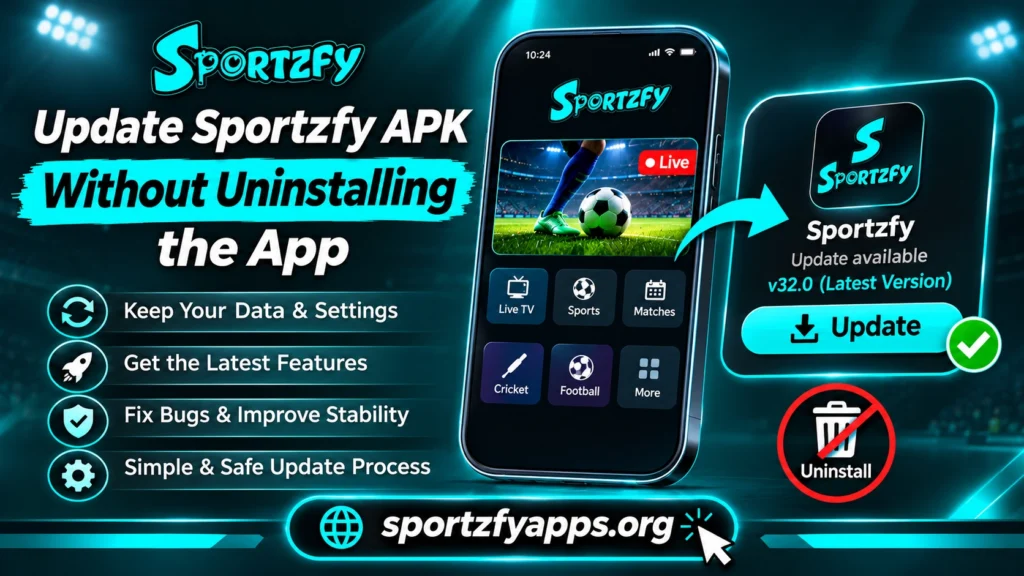
Update Sportzfy APK Without Uninstalling the App
Updating an Android application should be straightforward, but APK updates sometimes create confusing errors. Many users want the latest release while keeping their existing settings and app data. Fortunately, Android can usually update a compatible application without removing its current installation.
This guide explains how to update this app safely, what to check before installing, and how to fix common problems with Sportzfy for Android. The key is using a compatible APK from a source you trust.
Why Update Without Uninstalling?
Uninstalling an application can delete locally stored information. Depending on the app, that may include preferences, saved settings, favorites, or other data. An in-place update is generally more convenient because Android replaces the installed version while retaining its data.
However, this only works when the new package is recognized as an update. The package name and signing certificate must match, and the release must support your device. A different or modified APK may be rejected even when its name looks identical.
Before You Download the New Version
A few quick checks can prevent installation failures.
Check the Installed Version
Open Settings, select Apps, and locate Sportzfy tv app. Open App Info and check the version number if your device displays it. This helps you avoid downloading the same release again.
Confirm Device Compatibility
Check your Android version and available storage. A newer APK may require a supported Android version or additional space during installation. Android TV users should also confirm that the application works with their device and remote.
Use a Reliable Download Source
Download the update from a source you can verify. Avoid modified packages, misleading download buttons, and pages that demand unnecessary permissions. A complete APK matters; interrupted downloads can cause installation errors.
Method 1: Update Using the Downloaded APK
This is the usual manual update process for Android phones and compatible Android TV devices running Sportzfy app.
Step 1: Download the APK
Open the trusted download page in your browser or Downloader app. Select the latest compatible APK and wait until the download finishes. Do not open an incomplete file.
Step 2: Open the Installer
Find the APK in Downloads or your file manager. Tap it to open Android’s package installer. If Android asks for permission to install unknown apps, allow it only for the browser or file manager you are using.
Step 3: Choose Install
When Android recognizes the package as a compatible update, it should display an installation prompt. Select Install, not Uninstall, and wait for the process to complete. If Android offers only an error message, stop here. Removing the existing app may erase its data and should not be your first troubleshooting step.
Step 4: Launch and Check
Open Sportzfy 2026 after installation. Confirm that the app launches and that your existing preferences remain available. Test its menus and functions before relying on the update.
Method 2: Update on Android TV
The process is similar on Android TV, but navigation uses the remote.
- Open Downloader or your preferred file manager.
- Visit the verified APK download page.
- Download the compatible package.
- Open the downloaded file.
- Approve installation permission if Android requests it.
- Select Install when the update prompt appears.
- Open the app from the Apps list.
Some sideloaded apps do not appear on the home screen. Check the full Apps section before assuming installation failed.
Why Android May Reject an Update
“App Not Installed”
This often means the APK is incompatible with the installed package. A different signing certificate, package identity, or incomplete file can cause this message. Confirm that the new file comes from the same trusted distribution source as your current version.
“Update Not Compatible”
A package may target a different device architecture or Android version. Check the APK requirements and your device specifications instead of repeatedly trying random files.
Installation Gets Stuck
Low storage or a damaged download can interrupt installation. Free some space, download the APK again, and restart the device before retrying. Do not clear application data just to solve a download problem.
The App Closes After Updating
If sportzfy new crashes after installation, restart your phone or TV and check whether the release supports your Android version. You can clear its cache if needed, but avoid selecting Clear Data unless you understand that it may remove stored information.
Will an Update Keep Your Settings?
A compatible in-place update normally preserves application data. Still, no update can guarantee that every setting will remain unchanged. Developers may change storage behavior, reset preferences, or introduce new configuration requirements. If the application provides a backup or export option, use it before a major update. Keep a note of important preferences so you can restore them if a release changes the interface.
How to Confirm the Update Worked
After updating sportzfy tv app apk for android tv,, return to App Info and check the installed version. Compare it with the version you downloaded. Then open the application and test navigation, settings, and available functions. If something is wrong, record the exact error and your device model. That information is more useful than repeatedly installing different APKs.
Final Thoughts
Updating sportzfy apk download for android new version without uninstalling is usually the better choice when you want to retain existing app data. Download a compatible APK, open its installer, and choose Install when Android recognizes it as an update. If the update fails, investigate package signatures, compatibility, storage, and permissions first. Uninstalling should be a last resort—not the first fix. Always use a trustworthy source and review installation warnings carefully.